Godot Editor
Archmage can display config ID properties in the Inspector as dropdowns. Without dropdowns, you must look up each ID in a config table and enter it manually. A mistyped ID can go unnoticed until the game runs. With a dropdown, you select the ID from a searchable list of the table’s IDs, and the list can show a name next to each ID.
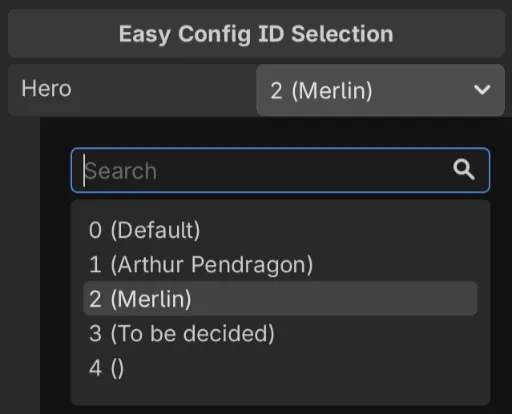
archmage struct generates the dropdown code with the godot-editor-gd template. The generated code is a Godot editor plugin, which has two roles: it loads the configs in the editor, and it provides a custom inspector control that renders each config ID property as a dropdown.
Generate the Code
Section titled “Generate the Code”Run archmage struct with the same arguments as for the config code, but with a different -t and -o:
archmage struct -t godot-editor-gd -o addons/archmage_editor hero.xlsx race.xlsx-o must be a folder inside addons/, where Godot looks for plugins.
Run the command each time you generate the config code. It does not overwrite plugin.cfg and archmage_editor_plugin.gd, which are yours to edit.
Enable the Plugin
Section titled “Enable the Plugin”Enable the Archmage plugin in Project > Project Settings > Plugins.
Load the Configs
Section titled “Load the Configs”In the _load_game_configs function of archmage_editor_plugin.gd, replace the TODO comment, the push_warning call and return null with code that loads the configs synchronously and returns the atlas:
# Replace "res://configs" with your actual config directory.const CFG_ROOT := "res://configs"var atlas := ConfigAtlas.new()var loader := Archmage.AtlasLoader.new()if loader.load_atlas(CFG_ROOT + "/atlas.json", CFG_ROOT, atlas) != OK: push_error("<archmage> Failed to load game configs for the editor: " + loader.get_error_message()) return nullreturn atlasThe configs are loaded when the Inspector first displays an object. To load changed config files, choose Project > Tools > Reload Game Configs for Editor.
Export Config IDs to the Inspector
Section titled “Export Config IDs to the Inspector”To show a property in the Inspector as a dropdown of the IDs of HeroTable, pass CfgIdProp.HINT and CfgIdProp.HERO to @export_custom. For an array of IDs, pass CfgIdProp.HINT and CfgIdProp.HERO_ARRAY. Each element of the array shows as a dropdown. CfgIdProp has these two constants for each regular table.
The property has the type of the config ID: int, or String for a table with string IDs. An array has the type Array[int] or Array[String].
@export_custom(CfgIdProp.HINT, CfgIdProp.HERO)var hero: int@export_custom(CfgIdProp.HINT, CfgIdProp.RACE)var race: String@export_custom(CfgIdProp.HINT, CfgIdProp.HERO_ARRAY)var heroes: Array[int] = []@export_custom(CfgIdProp.HINT, CfgIdProp.RACE_ARRAY)var races: Array[String] = []Your code looks up the config entry of the property in its table, such as atlas.hero_table.lookup(hero).
Show More Than Just the ID
Section titled “Show More Than Just the ID”By default, each dropdown shows only the IDs. To show more, register the choices of a table with a display formatter in _initialize_cfg_id_choices, after CfgIdChoices.register_defaults(atlas). The formatter takes an ID and returns the text to show:
CfgIdChoices.register_hero(atlas.hero_table, func(id: int) -> String: return "%d (%s)" % [id, atlas.hero_table.lookup(id).name.text])If the formatter reads localized text, such as name.text above, the load code must also set L10n.get_i18n and L10n.get_preferred_language.