Godot Editor
Archmage can display config ID properties in the Inspector as dropdowns. Without dropdowns, you must look up each ID in a config table and enter it manually. A mistyped ID can go unnoticed until the game runs. With a dropdown, you select the ID from a searchable list of the table’s IDs, and the list can show a name next to each ID.
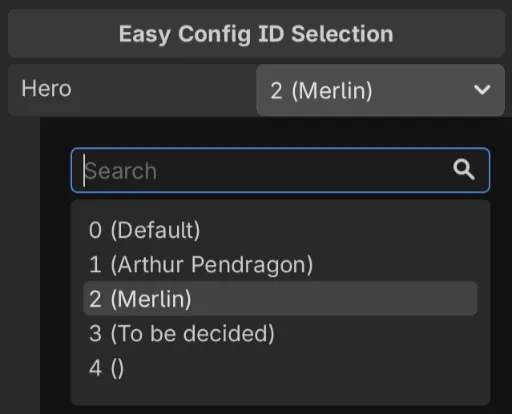
archmage struct generates the dropdown code with the godot-editor template. The generated code is a Godot editor plugin, ArchmageEditorPlugin, which has two roles: it loads the configs in the editor, and it provides a custom inspector control that renders each config ID property as a dropdown.
Generate the Code
Section titled “Generate the Code”Run archmage struct with the same arguments as for the config code, but with a different -t, --namespace and -o:
archmage struct -t godot-editor --namespace Conf.Editor \ -o addons/archmage hero.xlsx race.xlsx--namespacemust be the namespace of the config code or a namespace inside it, because the generated code uses the config types without anyusingdirectives.-omust be a folder insideaddons/, where Godot looks for plugins.
Run the command each time you generate the config code.
Enable the Plugin
Section titled “Enable the Plugin”Build the project, then enable the Archmage plugin in Project > Project Settings > Plugins.
Load the Configs
Section titled “Load the Configs”In the ReloadGameConfigs method of ArchmageEditorPlugin.cs, replace the TODO comment and the TODO log with code that loads the configs synchronously and sets ConfigAtlas.Instance:
// Replace "res://configs" with your actual config directory.const string cfgRoot = "res://configs";var atlas = new ConfigAtlas();var options = new AtlasOptions() .WithLogger(new GodotAtlasLogger()) .WithJsonSettings(GodotJsonSettingsFactory.Create()) .WithFS(new GodotFileAccessFS());Archmage.LoadAtlas($"{cfgRoot}/atlas.json", cfgRoot, atlas, options);ConfigAtlas.Instance = atlas;The configs are loaded when the Inspector first displays an object. After each build, they are reloaded the next time the Inspector displays an object. To load changed config files manually, choose Project > Tools > Reload Game Configs for Editor. The editor only uses updated C# code after a build. Saving a .cs file does not trigger a build.
Export Config IDs to the Inspector
Section titled “Export Config IDs to the Inspector”To show a field or C# property in the Inspector as a dropdown of HeroCfgId values, pass CfgIdPropHint.Hero and CfgIdPropType.Hero to [Export]. For an array of HeroCfgId values, pass CfgIdPropHint.HeroArray and CfgIdPropType.HeroArray. Each element of the array shows as a dropdown.
Because Godot cannot export a config ID type such as HeroCfgId, the field or property must have the type of HeroCfgId.Value.
For an array, the type is not always the type of Value followed by [], because Godot does not export sbyte[], short[], ushort[], uint[] or ulong[]. A single config ID does not have this problem. Use this table to find the array type:
Type of Value |
Array type |
|---|---|
string |
string[] |
byte |
byte[] |
sbyte, short, ushort, int |
int[] |
uint, long, ulong |
long[] |
HeroCfgId.Value is a long in the example below. The C# property Hero converts the exported field _hero to a HeroCfgId for your code:
using Conf.Editor;
[Export(CfgIdPropHint.Hero, CfgIdPropType.Hero)] long _hero;public HeroCfgId Hero { get => _hero; set => _hero = value; }
[Export(CfgIdPropHint.Race, CfgIdPropType.Race)] string _race = "";public RaceCfgId Race { get => _race; set => _race = value; }
[Export(CfgIdPropHint.HeroArray, CfgIdPropType.HeroArray)]public long[] Heroes = Array.Empty<long>();
[Export(CfgIdPropHint.RaceArray, CfgIdPropType.RaceArray)]public string[] Races = Array.Empty<string>();
Show More Than Just the ID
Section titled “Show More Than Just the ID”By default, each dropdown shows only the IDs. To show more, register the ID’s choices with a display formatter in InitializeCfgIdChoices, after RegisterDefaultCfgIdChoices:
HeroCfgIdChoices.Register(atlas.HeroTable, v => $"{v} ({new HeroCfgId(v).Cfg.Name.Text})");If the formatter reads localized text, such as Cfg.Name.Text, the load code must also set L10n.GetI18n and L10n.GetPreferredLanguage.